---
key: mechanic/trackpad--family-02
type: mechanic
id: trackpad--family-02
lang: en
title: Touches and clicks
summary: >-
A tap or physical press triggers a command. macOS separately enables
tap-to-click and configures a two-finger secondary click.
updatedAt: '2026-10-22'
status: active
url: 'https://gamemechanics.pro/en/knowledge/mechanic/trackpad--family-02/'
jsonUrl: >-
https://gamemechanics.pro/api/v1/knowledge/en/mechanic/trackpad--family-02.json
markdownUrl: 'https://gamemechanics.pro/content/knowledge/en/mechanic/trackpad--family-02.md'
aliases: []
tags:
- Trackpad interactions
- Mechanics catalog
sourceIds:
- source-0d7ed8efcd920b62
- source-7641af4e83c63a96
- source-20585e90edc5bdfb
- source-80fb36760a664f26
- source-27c6b989daeb79c9
- source-8303b0f3aad42806
- source-c1dd61a434f7ff1a
sources:
- id: source-0d7ed8efcd920b62
title: macOS Gestures
url: 'https://support.apple.com/en-us/102482'
verifiedAt: null
- id: source-7641af4e83c63a96
title: Windows Gestures
url: >-
https://support.microsoft.com/en-us/windows/hardware/input-devices/touch-gestures-for-windows
verifiedAt: null
- id: source-20585e90edc5bdfb
title: Clicking and dragging Surface
url: >-
https://support.microsoft.com/en-us/surface/accessories/cover-keyboard/surface-touchpad-use-and-settings
verifiedAt: null
- id: source-80fb36760a664f26
title: 'AppKit: contacts and system gestures'
url: >-
https://developer.apple.com/library/archive/documentation/Cocoa/Conceptual/EventOverview/HandlingTouchEvents/HandlingTouchEvents.html
verifiedAt: null
- id: source-27c6b989daeb79c9
title: 'libinput: swipe, pinch, hold'
url: 'https://wayland.freedesktop.org/libinput/doc/latest/gestures.html'
verifiedAt: null
- id: source-8303b0f3aad42806
title: 'W3C: Pointer Events'
url: 'https://www.w3.org/TR/pointerevents/'
verifiedAt: null
- id: source-c1dd61a434f7ff1a
title: macOS Trackpad settings
url: 'https://support.apple.com/en-us/102309'
verifiedAt: null
relations: []
placements:
- catalogId: trackpad
id: family-02
title: Trackpad interactions
url: 'https://gamemechanics.pro/en/mechanics/trackpad/#family-02'
categoryIds:
- section-1
supersededBy: []
attributes:
preview:
updatedAt: '2026-10-22'
title: Touches and clicks
description: >-
A tap or physical press triggers a command. macOS separately enables
tap-to-click and configures a two-finger secondary click.
image:
src: images/mechanics/control-macos-force-touch.webp
width: 1440
height: 1225
crop:
x: 473
'y': 832
width: 936
height: 273
game: macOS Trackpad settings
sourceUrl: 'https://support.apple.com/en-us/102309'
originalUrl: >-
https://cdsassets.apple.com/live/7WUAS350/images/macos/tahoe/macos-tahoe-26-system-settings-trackpad-point-and-click-look-up-and-data-detectors.png
credit: Apple
rights: >-
Imagery © Apple. Developer-distributed screenshot or frame; all rights
reserved. Excluded from MIT and CC BY 4.0.
caption: 'macOS: separate settings for tapping and secondary click'
alt: 'macOS: separate settings for tapping and secondary click'
markers:
- x: 77
'y': 78
label: Secondary click is configured for two fingers
tips:
- Respect OS settings and offer an alternative to multi-finger gestures.
examples:
- title: macOS Trackpad settings
url: 'https://support.apple.com/en-us/102309'
endsAt: null
provenance: >-
Original editorial design catalog consolidated from project discussions on
2026-10-20. Complete discussion item lists and contextual limitations are
preserved; linked primary sources support specific techniques, not the entire
classification. English translation was prepared with machine assistance and
editorial review.
license: CC-BY-4.0
codeLicense: MIT
attribution: gamemechanics.pro contributors
catalogKey: catalog/trackpad
---
# Touches and clicks
id: trackpad--family-02
type: mechanic
key: mechanic/trackpad--family-02
lang: en
status: active
url: https://gamemechanics.pro/en/knowledge/mechanic/trackpad--family-02/
A tap or physical press triggers a command. macOS separately enables tap-to-click and configures a two-finger secondary click.
## At a glance
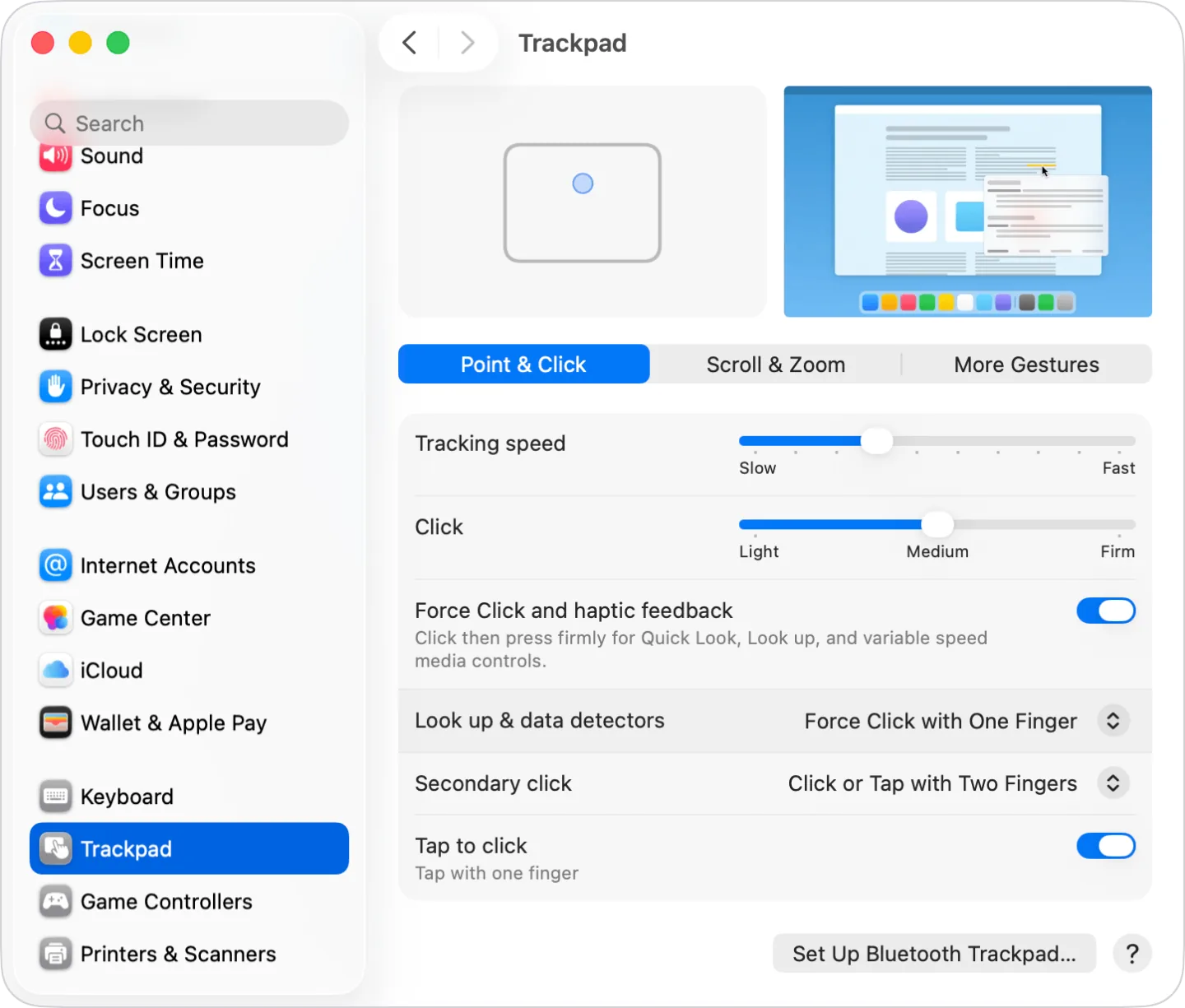
[macOS Trackpad settings](https://support.apple.com/en-us/102309) · Imagery © Apple. Developer-distributed screenshot or frame; all rights reserved. Excluded from MIT and CC BY 4.0.
1. Secondary click is configured for two fingers
- Respect OS settings and offer an alternative to multi-finger gestures.
- [macOS Trackpad settings](https://support.apple.com/en-us/102309)
## How it works
Short contacts and presses trigger discrete commands based on the number, location and context of touches.
## Variants
### Variants and applications
- Single tap. Gesture: Briefly touch the panel and remove your finger. In the interface: Select, confirm, place the cursor. In the game: Interact with an object, single action. Access level: Cursor and buttons; The application gets the usual pointer and buttons. Physical fingers and their separation may be unknown to him. Conditions: Tap-to-click must be enabled. The application often sees a normal click and does not know that it is a tap.
- Pressing with click. Gesture: Press the surface or press a separate button. In the interface: Activation and start of dragging. In the game: Shoot, confirm the command. Access level: Cursor and buttons; The application gets the usual pointer and buttons. Physical fingers and their separation may be unknown to him. Conditions: A mechanical or tactilely simulated click does not mean access to analog force.
- Secondary click. Gesture: Tap with two fingers, click in the corner or with a separate right button. In the interface: Context menu, additional commands. In the game: Inspect an object, alternative action. Access level: Cursor and buttons; The application gets the usual pointer and buttons. The physical fingers and their separation may be unknown to him. Conditions: The specific physical gesture is selected by the OS settings; the application usually only needs a secondary click.
- Double tap or click. Gesture: Two quick clicks in one area. In the interface: Open, select a word, zoom in context. In the game: Fast movement, group command. Access level: Cursor and buttons; The application gets the usual pointer and buttons. Physical fingers and their separation may be unknown to him. Conditions: Coordinate the time window with the OS settings and do not break a single click.
- Triple and multiple clicks. Gesture: A series of clicks with counting the number. In the interface: Selecting a line or paragraph according to the editor's rules. In the game: Command by the number of clicks, a simple sequence. Access level: Cursor and buttons; The application gets the usual pointer and buttons. The physical fingers and their separation may be unknown to him. Conditions: The meaning of a triple click depends on the application. The more clicks, the higher the risk of error.
- Double tap with two fingers. Gesture: Tap twice synchronously with two fingers. In the interface: Smart zoom: zoom in on content and return to view. In game: Switch between field view and local scene. Access level: Ready gesture; You need a gesture transmitted by the OS or framework: scroll, zoom, rotate, swipe or hold. The set varies. Conditions: Smart Zoom is available on macOS; There is no universal cross-platform event for this action.
- Rhythmic pressing. Gesture: Take into account the tempo and intervals of a series of taps or clicks. In the interface: Tap tempo, rhythm input, training. In the game: Rhythm game, musical lock, signal repetition. Access level: Cursor and buttons; The application gets the usual pointer and buttons. Physical fingers and their separation may be unknown to him. Conditions: Check the real input delay; Don't count a custom double click as a separate gesture for no reason.
- Tap with three fingers. Gesture: Short simultaneous touch with three fingers. In the interface: Second level command, search or review. In the game: Pause or additional ability in a special mode. Access level: Individual contacts; You need access to coordinates, phases and contact IDs. The presence of multitouch on the device does not guarantee this. Conditions: Often assigned to a system function. We need an accessible API and conflict checking.
- Tap with four or more fingers. Gesture: Simultaneous touching with several fingers. In the interface: Global command or changing the working context. In the game: Rare command, available after training. Access level: Individual contacts; You need access to coordinates, phases and contact IDs. This does not guarantee that a device has multitouch. Conditions: The number of contacts tracked and system assignments vary; do not make mandatory management.
- Tap in the physical area. Gesture: Touch a certain area of the panel itself. In the interface: Invisible quick command panel with on-screen prompts. In the game: Hit a sector, select an ability or note. Access level: Individual contacts; You need access to coordinates, phases and contact IDs. The presence of multitouch on the device does not guarantee this. Conditions: The position of the on-screen cursor does not indicate where the finger touched the physical pad.
## Context and limits
Author's working classification for designing games and interactions. Options can overlap and combine; the list is not a generally accepted standard or proven exhaustive list. Application examples are conditional unless a specific verifiable observation is indicated nearby. Sources support individual techniques and technical limitations.
## Connected materials
## Sources and provenance
Original editorial design catalog consolidated from project discussions on 2026-10-20. Complete discussion item lists and contextual limitations are preserved; linked primary sources support specific techniques, not the entire classification. English translation was prepared with machine assistance and editorial review.
- [macOS Gestures](https://support.apple.com/en-us/102482) (id: source-0d7ed8efcd920b62)
- [Windows Gestures](https://support.microsoft.com/en-us/windows/hardware/input-devices/touch-gestures-for-windows) (id: source-7641af4e83c63a96)
- [Clicking and dragging Surface](https://support.microsoft.com/en-us/surface/accessories/cover-keyboard/surface-touchpad-use-and-settings) (id: source-20585e90edc5bdfb)
- [AppKit: contacts and system gestures](https://developer.apple.com/library/archive/documentation/Cocoa/Conceptual/EventOverview/HandlingTouchEvents/HandlingTouchEvents.html) (id: source-80fb36760a664f26)
- [libinput: swipe, pinch, hold](https://wayland.freedesktop.org/libinput/doc/latest/gestures.html) (id: source-27c6b989daeb79c9)
- [W3C: Pointer Events](https://www.w3.org/TR/pointerevents/) (id: source-8303b0f3aad42806)
- [macOS Trackpad settings](https://support.apple.com/en-us/102309) (id: source-c1dd61a434f7ff1a)
CC-BY-4.0 · gamemechanics.pro contributors